IACRA — the Integrated Airman Certification and Rating Application system — is the FAA’s online platform for processing pilot certificates and ratings. Every student pilot application, every instructor sign-off, every checkride result goes through IACRA. And yet, most people learn how to use it by stumbling through the real system for the first time with a live application on the line.
The FAA actually built a solution for this: the IACRA Training Site. It’s a sandbox that mirrors the real system closely enough to practice most application processes without any risk. You can create test applications, sign them off as the recommending instructor, process them as the designated examiner, and even view them from the perspective of an FAA Aviation Safety Inspector — all without touching any real records.
Why this matters: If you’re a new CFI, the first time you recommend a student for a checkride shouldn’t be the first time you’ve ever seen the recommending instructor workflow. If you’re a student pilot, understanding what your instructor and examiner see on their end gives you a better picture of the entire certification process. And if you’re a DPE, the training site lets you practice edge cases without creating problems in the live system.
Getting Started
The training site lives on the same domain as the real IACRA system, which makes it easy to find — and easy to confuse with the live site if you’re not paying attention.
Navigate to IACRA
Go to https://iacra.faa.gov. On the left-hand side of the page, look for a list of links. Select “Training and Documentation.”
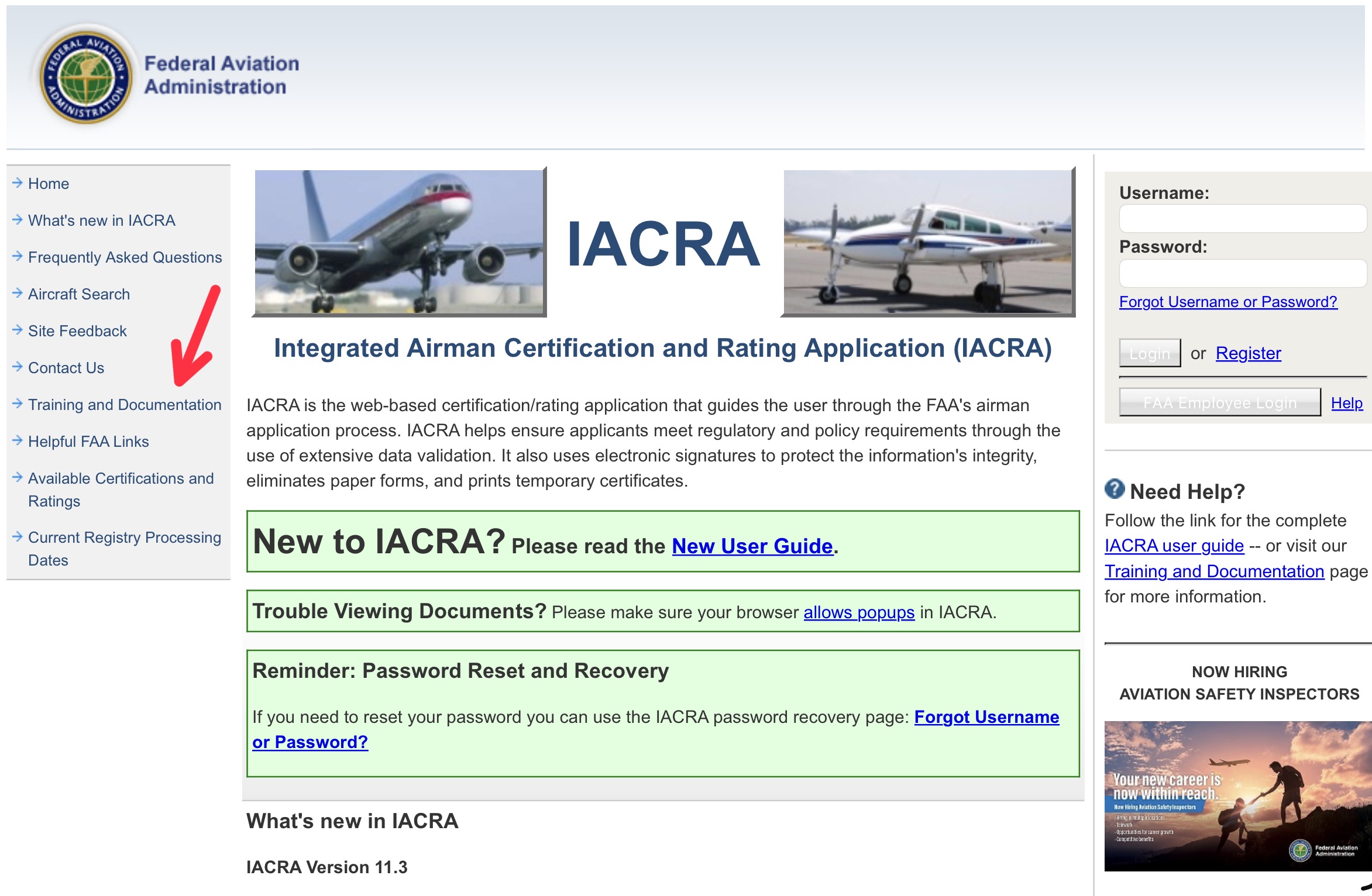
The production IACRA site at iacra.faa.gov — select "Training and Documentation" from the left sidebar.
Launch the Training Site
This opens a new page with two options: “Launch the IACRA Training Site” and a link to the complete IACRA user guide. Select the training site link.
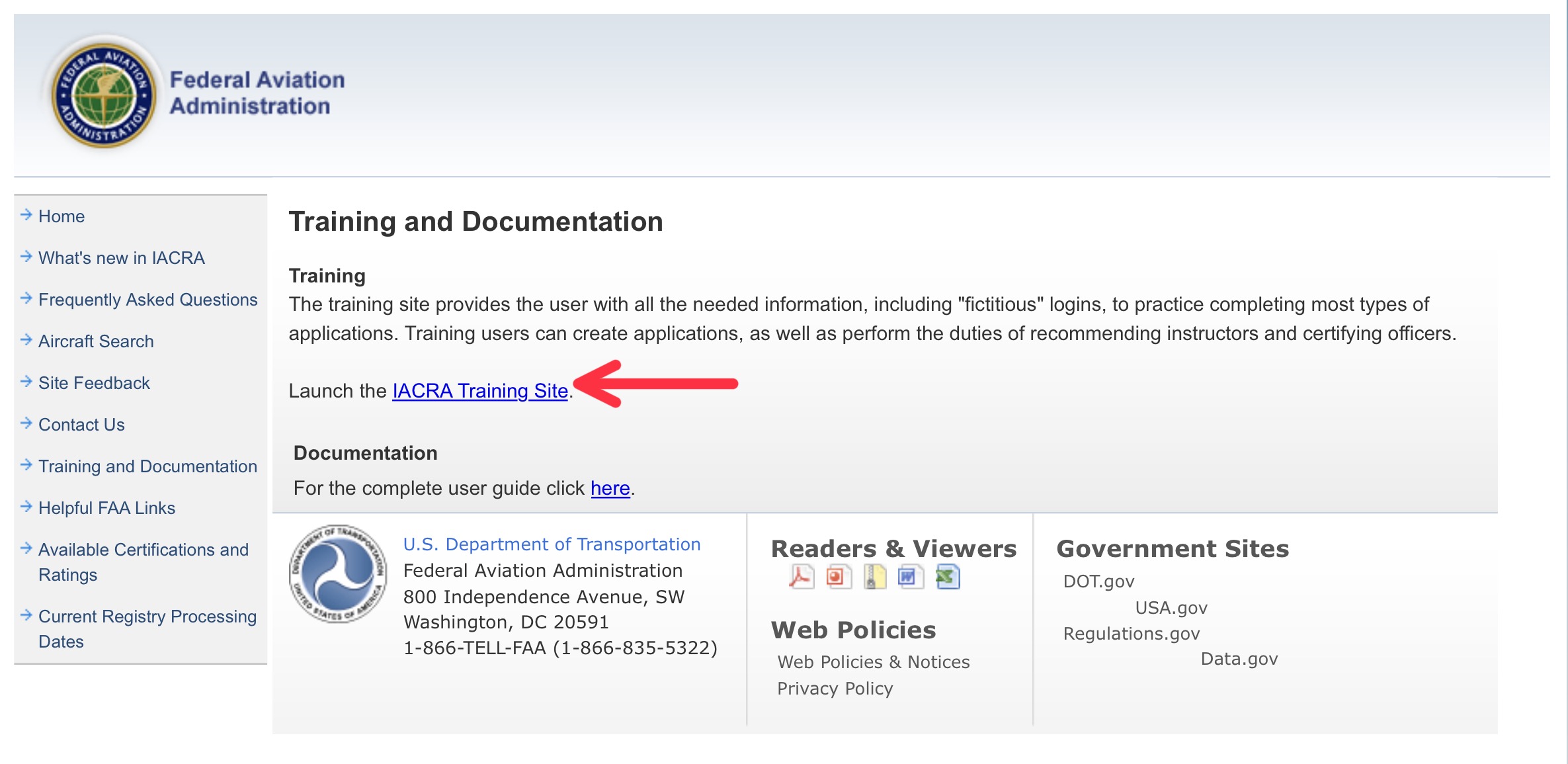
Click "Launch the IACRA Training Site" to open the sandbox environment.
Generate Your Login Credentials
You’ll see two sections: “First Time?” and “Been Here Before?” If this is your first visit, select “Generate Logins” in the First Time section.
A dropdown menu lets you choose the type of user environment to simulate:
- 61/107 — Choose this if you attend or work at a Part 61 flight school
- CFR 141 — Choose this if you attend or work at a Part 141 flight school
Once you make your selection, click “Request Login Information.”
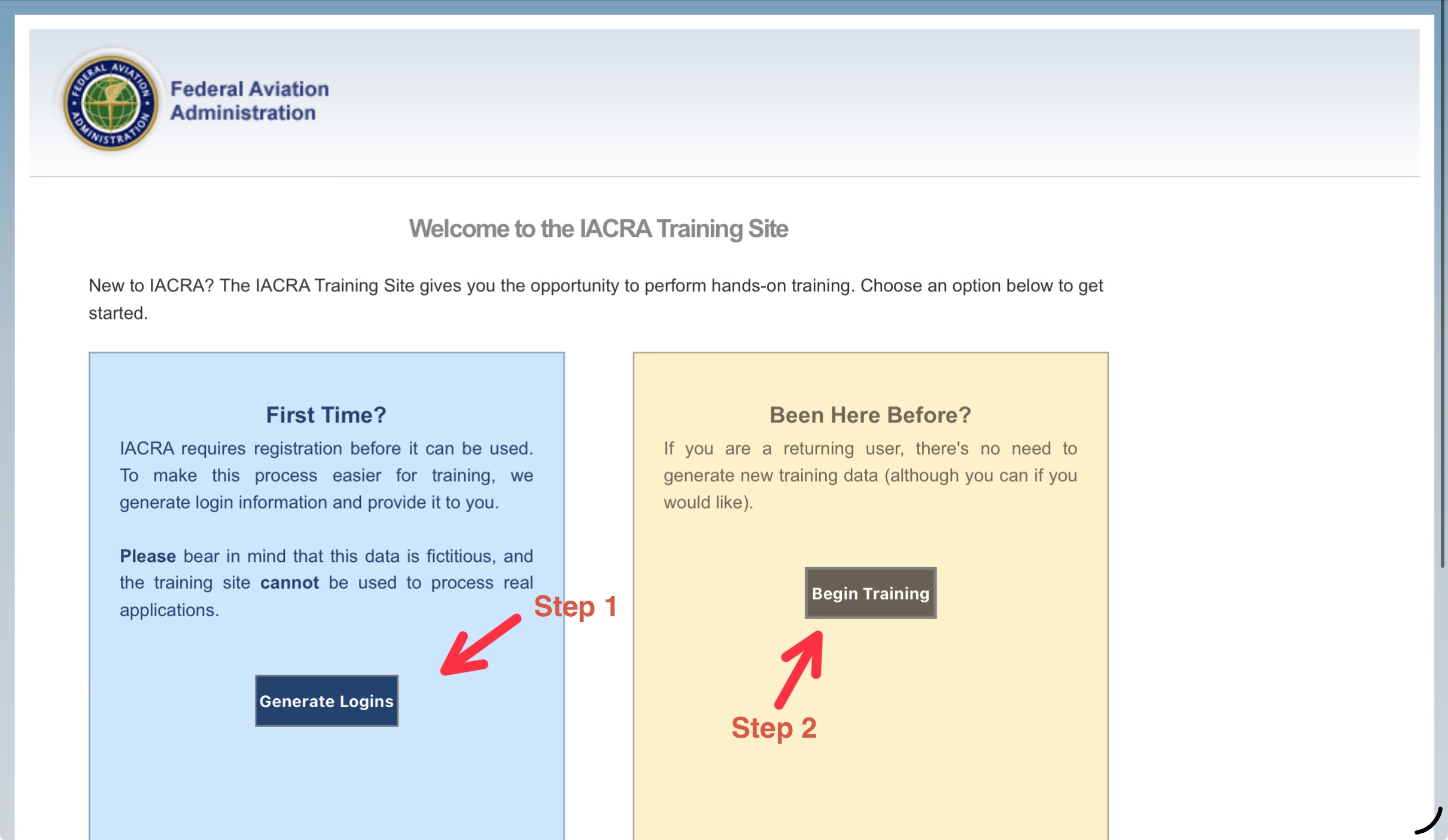
First-time visitors click "Generate Logins" (Step 1), returning users click "Begin Training" (Step 2).
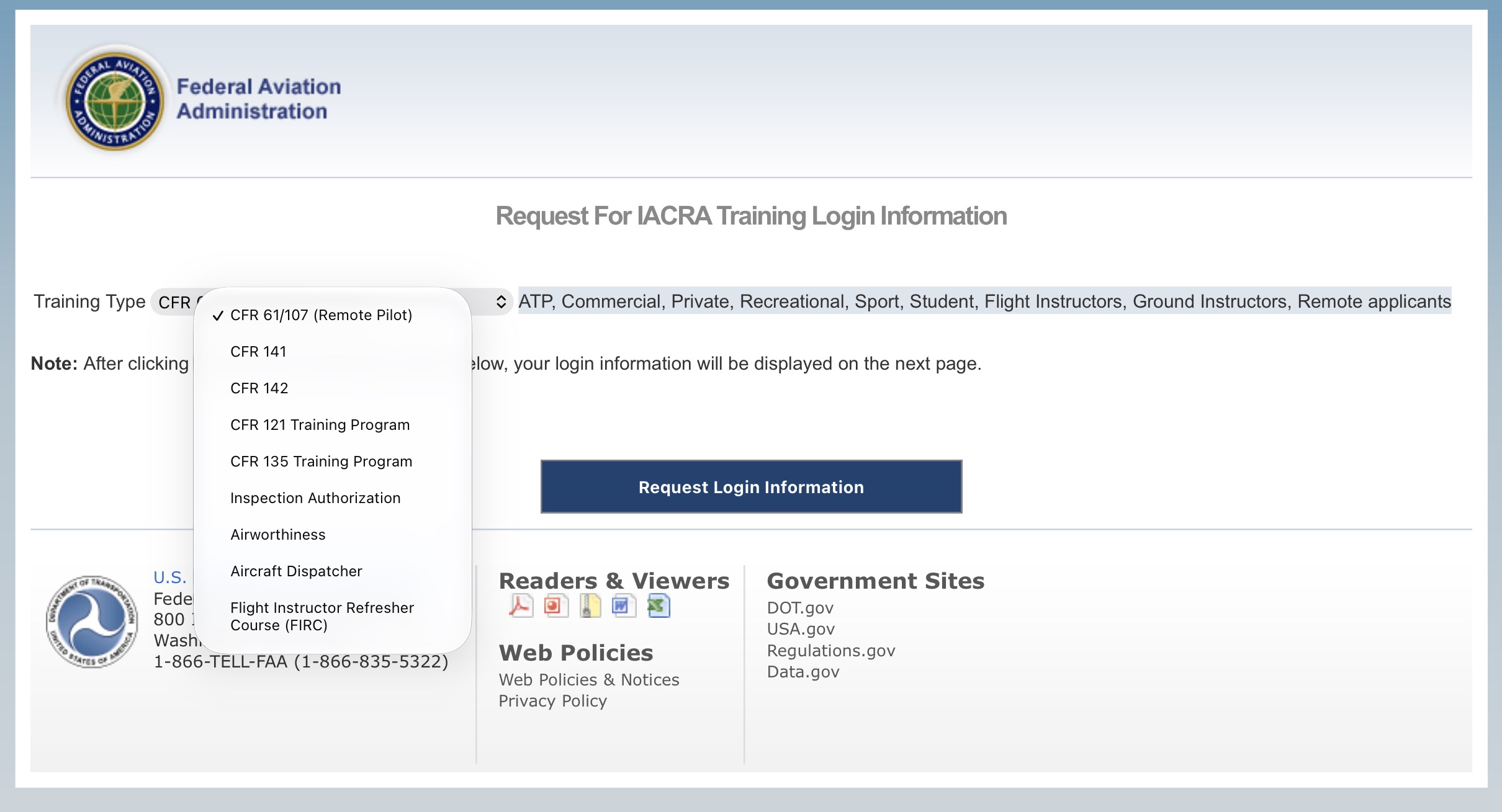
Select your training type from the dropdown — most pilots will choose CFR 61/107 or CFR 141.
Save Your Credentials
The next screen displays a set of login credentials — usernames and passwords for each simulated role:
- Applicant — The student or pilot applying for a certificate or rating
- Recommending Instructor — The CFI signing off the applicant
- Designated Examiner — The DPE conducting the practical test
Important: Print this page or take a screenshot immediately. This is your only opportunity to get these specific credentials. If you lose them, there is no recovery option — you’ll have to start over and generate a new set, and any test applications you’ve already created will be inaccessible.
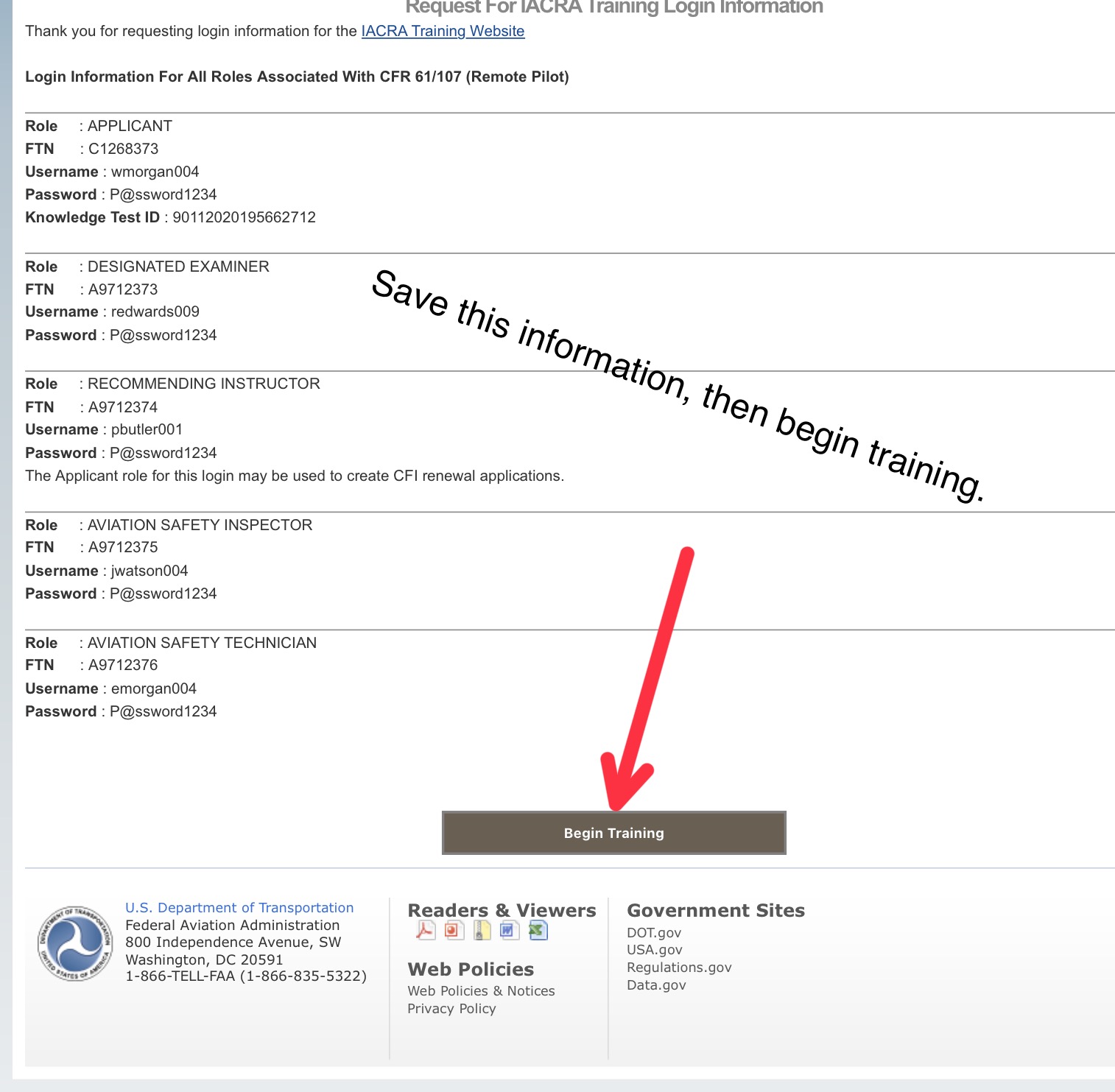
Save this information immediately — there is no way to recover these credentials later.
Enter the Training Site
Go back to the training site page and this time select “Begin Training” in the “Been Here Before?” section. This takes you to the actual IACRA training environment, which looks nearly identical to the live IACRA site.
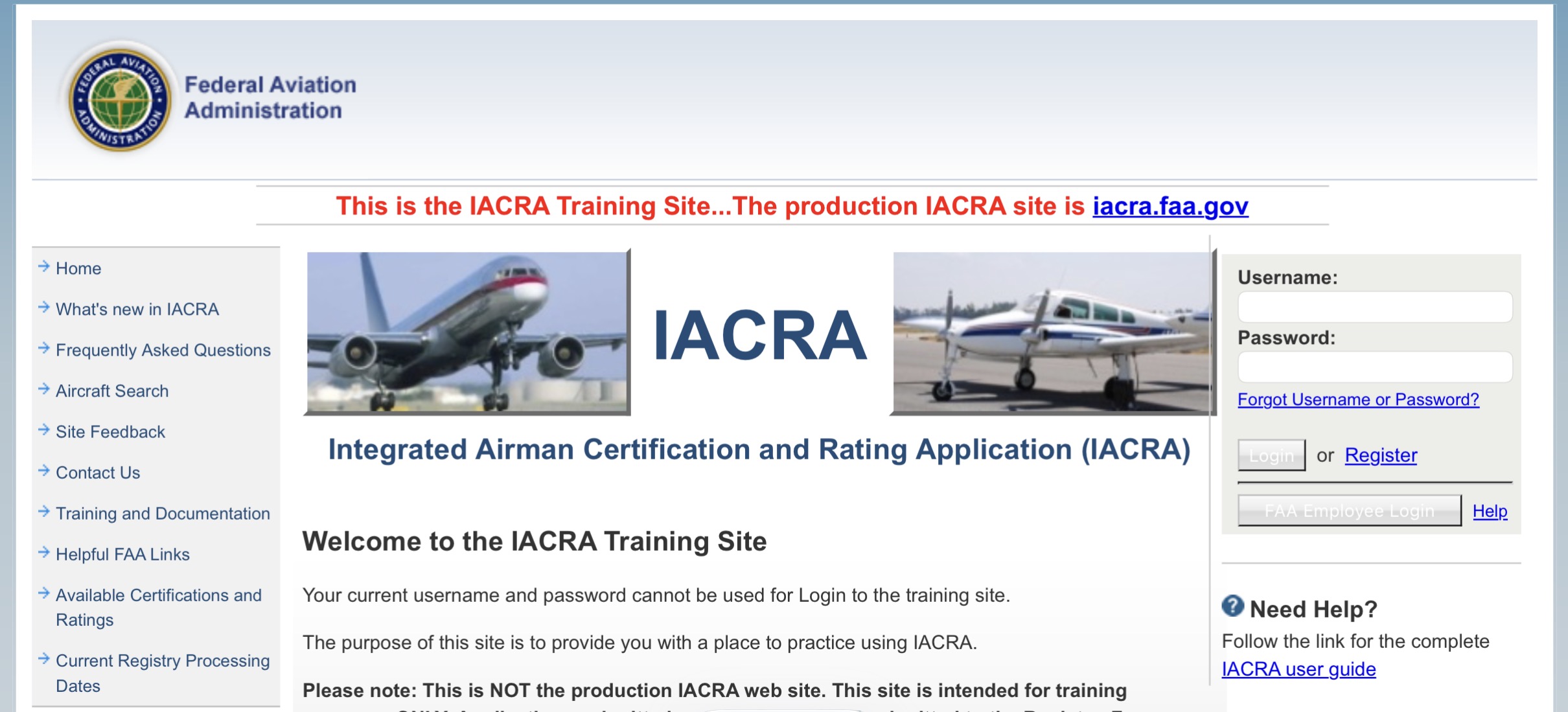
The training site looks nearly identical to the real IACRA — note the red banner at the top.
Don’t confuse the two sites. The training site displays “This is the IACRA Training Site” in red text at the top of the page. This might sound obvious, but the real IACRA site frequently displays red text in the same location to announce upcoming outages. Double-check which site you’re on before creating any applications.
Walking Through the Full Process
The real value of the training site is that you can walk through an entire application lifecycle — from the applicant’s initial submission through the examiner’s final signature on the 8710 — by logging in as each role in sequence.
Here’s the recommended workflow:
- Log in as the Applicant. All training-site applicants start as Private Pilots, so you can create applications for additional ratings or certificates from there. Fill out the application and submit it.
- Log out, then log in as the Recommending Instructor. Review the submitted application, verify the information, and sign off the applicant for the practical test.
- Log out, then log in as the Designated Examiner. Review the application, send it back to the applicant for signature if needed, and process the checkride result — including signing the 8710.
- (Optional) Log in as an FAA Aviation Safety Inspector. This lets you view the data that normally only FAA employees can see, giving you a complete picture of how the entire system works from the regulatory side.
Practical tip for new CFIs: Walk through this process at least once before you have a real student ready for a checkride. The recommending instructor workflow has specific steps and signatures that can catch you off guard if you’ve never seen them. Practicing in the sandbox means you won’t be figuring it out with a student sitting next to you and an examiner waiting on the other end.
Things to Keep in Mind
- The training site is not a 100% match to the live system. It can simulate most application processes in a realistic way, but some features or workflows may differ slightly.
- There is no way to recover lost credentials. If you lose your login information, you have to generate a new set and start from scratch. Any applications you created under the old credentials are gone.
- The training site is completely separate from the live IACRA system. Nothing you do in the training site affects real FAA records.
- Take the time to explore each role. Understanding what the applicant, instructor, and examiner each see gives you a better understanding of the certification process as a whole.
The IACRA training site is one of those FAA resources that most people don’t know exists. Take advantage of it. Whether you’re a student pilot trying to understand the process, a CFI preparing for your first recommendation, or a DPE getting familiar with a new workflow, learning in the sandbox is always better than learning in production.